|
Size: |
223 Kb
|
|
Upload Date: |
3.10.2012 - 19:16
|
|
Vote for us thanks! |
Note
0
bei
0
Bewertungen
|
|
Titel:
|
Cuneiform
|
|
Total Downloads: |
38
|
|
Last Download Date: |
24.09.2026 - 13:00
|
|
Views:
|
4090
|
|
Picture: |
|
|
Download Link:
|

|
|
Description: |
Sprache:
Englisch
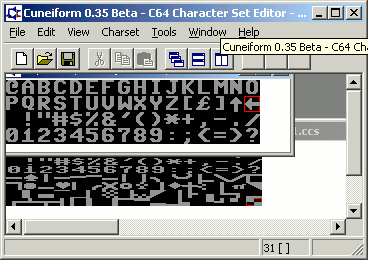
Cuneiform (Beta Version 0.35) - 10/11/02
Commodore 64 Character Set Editor for Win32
I began work on a cross-platform C-64 character set editor in June 2001, called Hieroglyphic. In mid-July, I sent the nearly finished product to Alan De Smet for testing. While not a C-64 user, he still gave me a ton of ideas to improve the interface. I decided to start over from scratch, and design a program that not only worked with character sets, but other graphics formats as well. I also plan to (possibly) include support for other systems within the same program. After a month or so of working on the project, I put it in the background.
However, in October 2001, I thought that I would like to test the waters with this project. Rather than send out an alpha version of my current editor (as it is somewhat limited at this point), I decided that I should send out my old editor, as I feel that some people will find it useful. I could have called this release "Hieroglyphic Alpha", but since Hieroglyphic is now essentially a different program, I decided to rename it to "Cuneiform".
I am not certain that I will continue development on this program, other than bug fixes. Hieroglyphic will contain all of the functionality of Cuneiform, and more, so I will devote my development time to that.
Nevertheless, I am definitely open to ideas and suggestions for improvement. If implemented, they will be done so in Hieroglyphic.
Even though you should think of Cuneiform as an appetizer, I still believe that is very powerful and you will get much practical use out of it. Therefore, I probably WILL maintain this version, so send in your bug reports. =)
Sorry if this documentation is somewhat rudimentary and haphazard. I was originally planning on writing a manual, but I am going to save that task for the big project. All you get is this readme. =(
HOW TO USE CUNEIFORM
--------------------
This program uses a Multiple Document Interface, so you have the ability to edit multiple character sets at a time. Opening, importing, or pasting a new character set will result in a new window. You can copy/paste freely between all documents.
*****
FILES
*****
Imports: PRG, P00, C64, CCS64 Freeze Files, and RAW data. It also has rudimentary support for importing BMPs.
Exports: PRG, Raw Data, and BMP
Native File Format: CCS
EXPORTING
---------
In exporting, you have the option to specify whether or not screen and color data is stored. If so, the data in the following order:
CHARSET
SCREEN RAM (32 rows of 8)
COLOR RAM (32 rows of 8)
COLORS
with no filler between the sections.
COLORS is stored in one of two ways:
1. If you have do not have line-based color enabled, then it is stored as three bytes: $D021 value, $D022 value, $D023 value
2. If line-based color is enabled, then it is stored as 64 consecutive sets of three bytes (one $D021, $D022, and $D023 for each line)
In this program, there are *no* constraints on the color registers (any register can use any of the 16 colors).
The "Normalize" checkbox: if this is checked, the character set is normalized (packed) before it is saved. This frees any wasted space taken up by redundant characters. All redundant characters are deleted, and the characters in the set are shifted left so all newly freed space ends up at the end of the character set. The number that appears next to the check box indicates the number of unique characters in the set (i.e., if you were to normalize, this is how many characters would be actually "used"). All unused, free characters are filled with zeroes (blank space). SCREEN RAM is adjusted accordingly, so you can rebuild your original screen/logo simply by directly copying the bytes in SCREEN RAM to the screen.
If you normalize a character set while exporting, it is highly recommended that you export SCREEN RAM along with it. In a character set that is not normalized, SCREEN RAM will simply contain the bytes 0..255 in order (therefore, saving SCREEN RAM is not of much use unless you are normalizing).
Note: normalizing does not reduce the size of the character set; it only (potentially) moves all "free" characters to the end of the set, in one contiguous block.
IMPORTING
---------
You can specify an offset to begin importing at (useful for freeze files). If the file format cannot be inferred, you are asked to specify it.
NATIVE FORMAT
-------------
It is suggested that you save your work in the native format (CCS), and export a separate copy when you are ready to use it on a C-64.
***********
* OPTIONS *
***********
Multicolor - this should be obvious. =) Shortcut key to toggle is CTRL-M.
Line Based Color - this simulates changing the color registers different raster lines, rather than having global colors. This may be useful in designing logos. You can use the Color Replace Tool (no glyph for it right now - it is labelled "Col") to manipulate the rows. Select the Color Replace Tool, and hold down the left mouse button and drag on the image. The color for the selected register (for that line) will change to the color currently in the global register. Experiment with this to see how it works. =) Shortcut Key to toggle is CTRL-ALT-L.
Override Color RAM - if this is selected, the currently selected color RAM color will replace the color RAM in the image as necessary. If not selected, the color RAM in the image will remain unchanged. Shortcut key to toggle is CTRL-ALT-O.
Quick Paste - if selected, then pasting takes place at the currently focused character (rather than giving you a target rectangle to manipulate)
Other shortcuts:
CTRL-G Toggle grid (grid can't be seen at some zoom levels)
CTRL-. (period) and CTRL-, (comma) - Zoom in and out (yes, this will change =)
The mouse wheel also functions for zooming
When a character set window ("document") is focused, the following shortcut keys will work
-------------------------------------------------------------------------------------------
Q - activate focus tool
W - activate select tool
E - activate pen tool
R - activate brush tool
T - activate color replacer tool
Y - activate spray paint tool
U - activate line tool
I - activate flood fill tool
O - activate box tool
P - activate filled box tool
A - activate ellipse tool
S - activate filled ellipse tool
D - activate polygon tool
F - activate push brush tool
Z - activate last tool used (useful for quickly alternating between tools)
1 - select color RAM color "register"
2 - select $D021 color register
3 - select $D022 color register
4 - select $D023 color register
***********
* VIEWS *
***********
View As - You are given the option to view your character set in different character dimensions. The underlying data does not change. For example in, 1x2 mode, the view will look like this (all values are character indices).
Row 1: $00, $01, $02, $03, ...
Row 2: $80, $81, $82, $83, ...
Row 3: $10, $11, $12, $13, ...
Row 4: $90, $91, $92, $93, ...
and in 4x4, will look like this:
Row 1: $00, $40, $01, $41, ...
Row 2: $80, $C0, $81, $C1, ...
Row 3: $10, $51, $11, $51, ...
Row 4: $90, $D1, $91, $D1, ...
Remap - This is similar to View As, but it actually rearranges the underlying data (while the View Mode remains the same).
**************
* SELECTIONS *
**************
You can either select an area using the select tool (the rectangle will appear in blue), or use the cursor keys to change the character focus (in red). Both essentially function as "selected" areas. NOTE: SHIFT+Cursor Keys function similar to the Select tool.
****************************
* PAINT OPERATION PRIORITY *
****************************
This works with most drawing tools.
Normal - normal drawing mode
Foreground - drawing operations only effect NON-background areas
Background - drawing operations only effect background areas; useful for drawing "behind" things
XOR - see for yourself. This does not work properly, and will not be fixed. =(
In other words:
Normal: Paint always succeeds
Background: Paint only succeeds for existing bits that are cleared
Foreground: Paint only succeeds for existing bits that are > 0
XOR: Paint bits XOR themselves with the underlying bits
TIP: If you ever find your drawing tools not working, check which mode you are in. =)
*********
* TOOLS *
*********
Most tools are self-explanatory, but here are some notes:
- In the Polygon tool, drag and release to complete a side. Double-click to close the polygon.
- The Push Brush takes on the color under it when the mouse is initially clicked. It is a basic "smudge" tool.
- Flood-fill searches for differing *bitpairs* as the boundary, not colors. Keep this in mind if you believe Flood Fill is acting strangely.
***********
* EFFECTS *
***********
The effects work on the currently selected/focused area. Scale and rotate do not work very well with non-square blocks.
NOTE:
Fill vs. Clear: "Fill" fills the selection with the currently selected
color. "Clear" fills the selection with the background color.
******************
* OTHER FEATURES *
******************
Copy Text to Clipboard - places a text message, made with the currently selected character set, into the clipboard (useful for placing text messages in logos, etc.)
Mix - similar to paste, but the pasted image is masked according to the foreground/background in the target image (for pasting "behind", etc)
Import BMP - you can import a BMP either into a grey-scale (of course, you can change these colors after importing!) character set, or into a monochrome character set. Set the way BMPs are imported in the Tools > Options screen.
******************
* "KNOWN ISSUES" *
******************
Yes, this program does currently have a lot of issues, but I don't believe that any of them (at least the ones I know about) are severely crippling. Of course, this list is not exhaustive, but here are some I definitely know about:
- Only 32x8 logos are supported.
- The vertical scrollbar on the MDI children acts strangely. If it disappears, resize the form.
- The clipboard functions on the toolbar don't work yet (though the clipboard is totally functional via the menu and hotkeys)
- The grid color sometimes behaves strangely when painting
- The overlay rectangle (used for focus, selection, and pasting) flickers
- The push brush only clones the pixel directly under the cursor
- The cursor does not assume different forms for different tools
- The spray paint "flow" needs a bit of tweaking
- NOT TESTED in 640x480
- The modified flag is set after you open a file (as opposed to Import)
|
|
|